Play audiobooks from Dropbox on iPhone
Keep your audiobooks in Dropbox, OneDrive, WebDAV, pCloud or Box and play them in Abookio on iPhone, iPad and Apple Watch, downloaded to your device for offline listening.
Keep your audiobooks in Dropbox, OneDrive, WebDAV, pCloud or Box and play them in Abookio on iPhone, iPad and Apple Watch, downloaded to your device for offline listening.
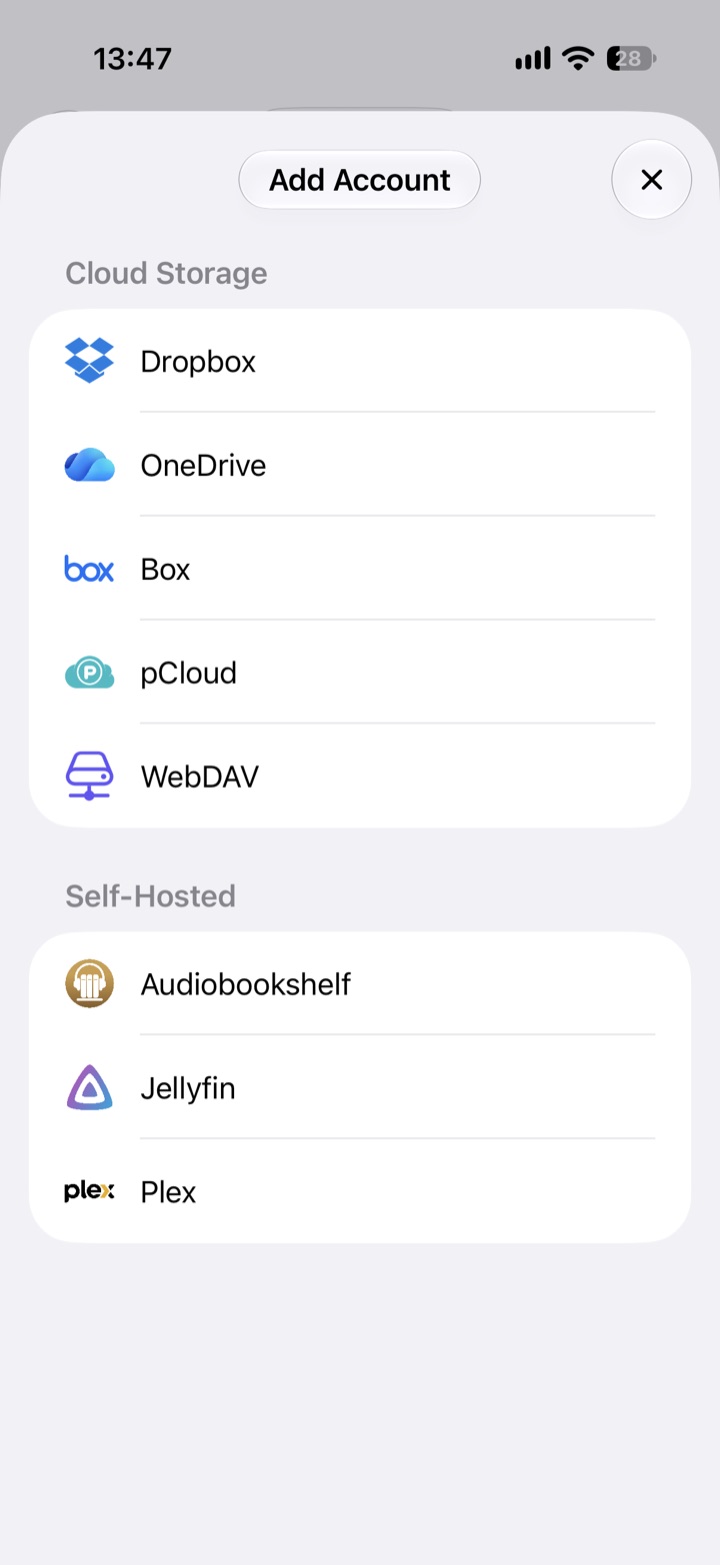
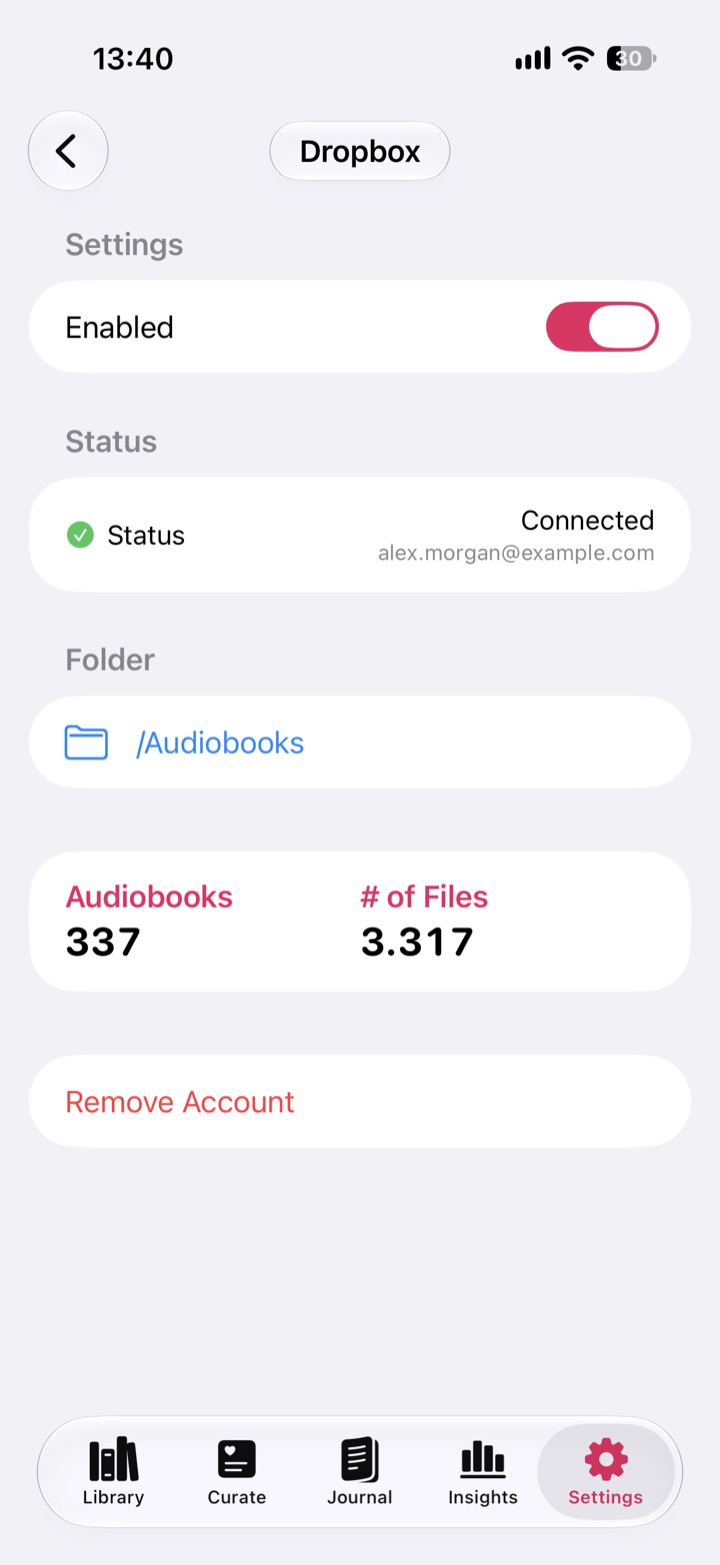
Cloud storage providers are part of Abookio Pro, a one-time purchase. Local files and iCloud Drive are free. The App Store shows the current price for your region.
Abookio keeps your place even if you re-import a book, and combines cloud books with local files and self-hosted servers in one library.
You sign in with your own provider account. Abookio has no accounts of its own, no analytics and no tracking.
Yes. Connect Dropbox in Abookio Pro and play or download the books you keep there.
M4B, M4A, MP3 and FLAC.
No. You only sign in to your cloud provider.
Cloud providers are part of Abookio Pro, a one-time purchase. Local files and iCloud Drive are free. The App Store shows the current price for your region.
An audiobook player for iPhone, iPad, Apple Watch and CarPlay. No account, no tracking.
Download on theApp Store